
Gemini Spark only supports MCP via OAuth currently. See Using AI Agents to Generate MiniLessons to learn more about enabling OAuth for MCP on your Moodle server. You must have the plugin local_oauthmcp installed on Moodle. Gemini Spark is not available to all Gemini users. If you don't see it, you may not have access to it.
Also after each call to a MiniLesson API that looks like a "write," Gemini Spark will stop and ask for permission. [just saying..]
Anyway follow these steps to get it going.
- Open Gemini on Web:
- Navigate to gemini.google.com on your desktop browser and sign in.
- Open Spark from the menu
- Access Connected Apps:
- In the bottom-left corner, click Settings =>Connected Apps.
- (Note: Depending on your region/UI layout, this may appear under Personal Intelligence => Connected Apps).
- Add Custom App for Spark:
- Scroll down to the section titled Custom apps for Spark.
- Click the Add a custom app button.
- Configure Endpoint & OAuth Credentials:
This step requires you to do some configuration on Spark and also on your Moodle site.- Enter your endpoint URL
https://[some-moodle-server]/mod/minilesson/mcp.php
- Click "Next" .. you will be returned to this page to enter a client id and secret.
- Click "Copy Redirect URL"
- Go to your Moodle's Site admin -> Plugins -> Manage MCP page and register the redirect URL and get the Client ID and Secret.
- Enter your Moodle OAuth Client ID and Client Secret.
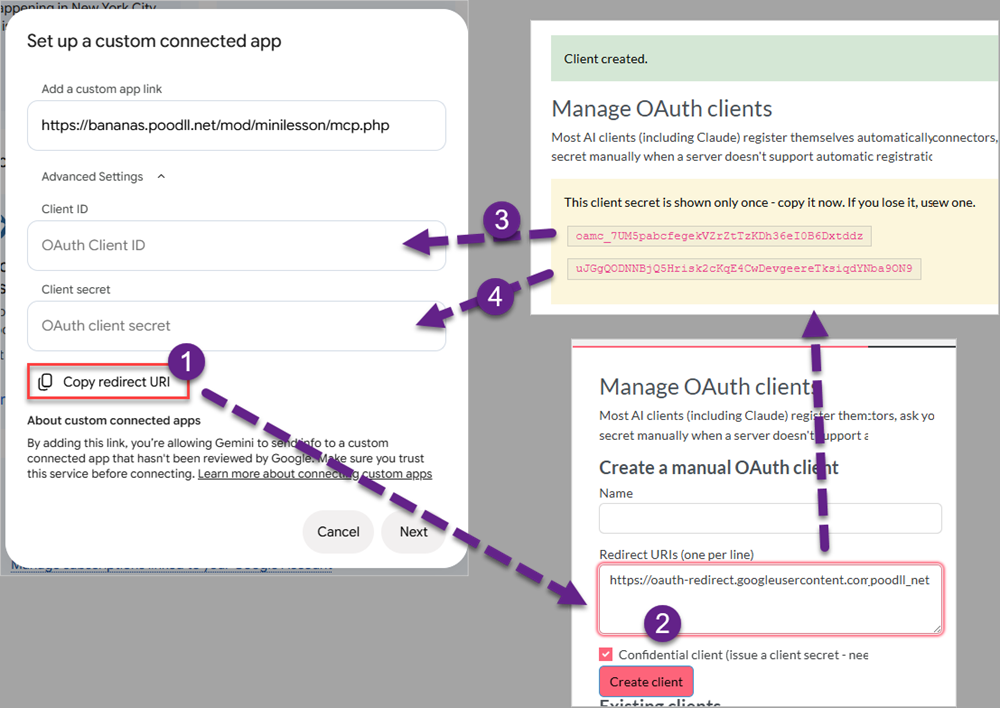
- Enter your endpoint URL
- Authorize Connection:
- Click Next. You will see Google and Moodle permissions pages/
- Agree on the Google pages, and click "Allow" on the Moodle page.
- Once approved, the dialog will close and the Moodle server will display as an active connected app.
If you get an error "Account linking is required to use this custom app. Try again" - press next and try again. It usually works the next time.