
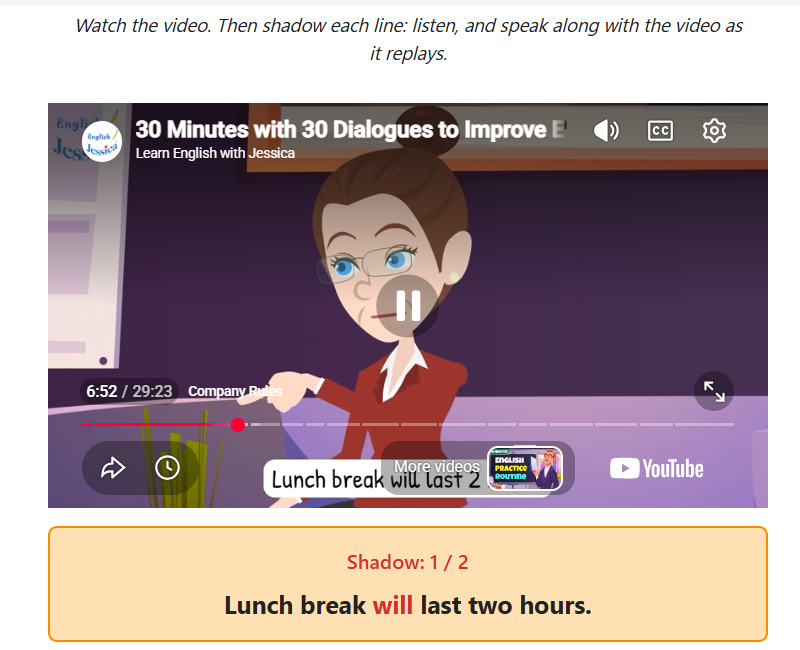
The Video Shadowing item plays a YouTube clip line by line. Students "shadow" each subtitle line, speaking along with the video as the words highlight. There is no speech recognition. The student should just practice speaking along with the video.
Using Video Shadowing
The student will see the video first, from the specified start to end time. Then each line of text will be played 1 or more times (configurable). During each play the student should practice saying the sentence aloud at the same time as the video. Depending on the availability of captions for the video, either the sentence or individual words will highlight in red as the student should speak them.
Configuring VideoShadowing
Youtube Video URL and start/end times
The activity author will need to add the YouTube URL of the video and set the start and end times of the video.
VTT captions
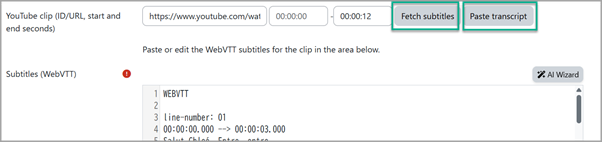
The author should provide the VTT captions for the video. If the video has captions/subtitles, it may be possible to fetch them by:
i) pressing the "Fetch Subtitles" button. (this is the best way ... but it may not work)
ii) press the "Paste Transcript" button - get the transcript from YouTube and paste it in. (works reliably .. but timing is not 100% accurate)
iii) manually create a VTT file. In practice this is not realistic. So you will only use i) or ii) with YouTube videos that have captions/subtitles.
Enable per word highlighting
If the webvtt data supports it per word highlighting can be enabled, which should give students visual hints on the pace at which to shadow.
Shadow count per line
The shadow count per line sets the number of times the student will shadow the same line.
Pause between shadows
The pause between shadows is how many seconds to pause between shadow attempts on the same line.
Lines to shadow
It is possible to enumerate the lines to shadow by entering a csv list of line numbers. The line number will be shown in the vtt/ captions data for the video. By default Lines to shadow is set to: * - which means all lines
Fetch Subtitles and Paste Transcript
The activity won't work without subtitles. Press the "Fetch Subtitles" button and Poodll will try to get the subtitles from YouTube. But YouTube will usually think Poodll is a bot and refuse. In that case you will see a message from Poodll about that.
The other way is to click on "Paste Transcript" button. The "Paste YouTube transcript" form will popup.
- Click the YouTube link for the URL in the YouTube field
(Or just go to the YouTube page yourself) - Expand the video description and scroll all the way down to the "show transcript" link. Click it.
- Click the 3 dots to "Toggle TimeStamps" on.
- Copy the entire transcript including timestamps.
- Paste the transcript into the text area
- Click the "Convert to subtitles" button.
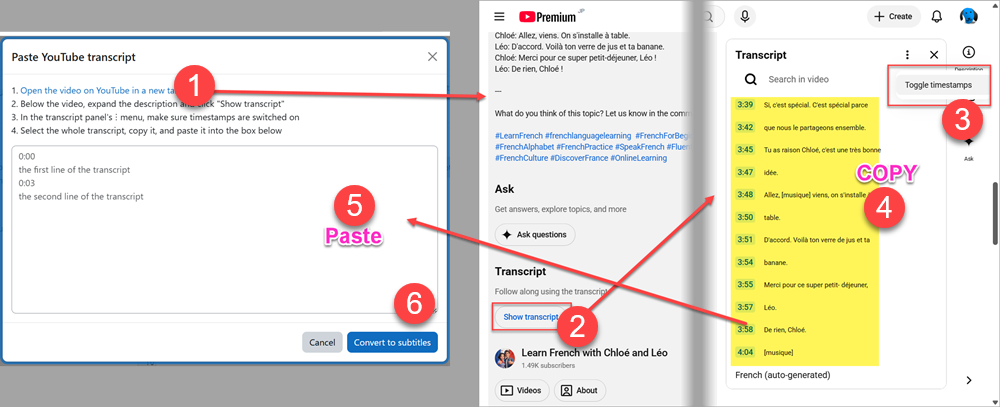
The time stamps may need a little adjusting and per-word highlighting won't work from transcripts made in this way. But this way creates subtitles reliably.