
It is possible to use AI Agents such as Claude / Claude Code / Gemini Spark / ChatGPT / Antigravity to generate MiniLessons.
Once it is set up you should be able to use the intelligence of the agent to:
- create importable MiniLesson content .. and import it. OR
- prepare inputs to MiniLesson's internal AI generate feature .. and trigger the AI generation
The first option (creating importable content) offers more flexibility because Minilesson's internal Ai Generate feature uses pre-built templates that may or may not match the inputs you have or the output you need. But the templates can generate images in the item they create. Your agent can make the decision on which to use, or you can ask it to consult with you.
There are three broad use cases that the API is optimised for:
- You simply describe what you want, and ask the agent to prepare it for you.
- You have a detailed specification, perhaps prepared by Gemini or some other tool, and you just want it turned into Minilessons
- You have a paper based lesson (eg a PDF) that should be turned into a set of Minilessons
Requirements
- Poodll MiniLesson version 1.1.43 (Build 2026071800) or greater
- Moodle configured correctly for use by an external agent
- An AI agent platform such as Claude, Claude Code, Cursor, or Antigravity
Configuring Moodle for use by an external agent
Some of the configurations steps listed below may already be set up. But you should check them first so that you have greater chance of getting it going on your first attempt.
The Web Service User and Permissions
Web services must be enabled at:
Site administration -> General -> Advanced features
The REST protocol must be enabled at:
Site administration -> Server -> Web Services -> Manage Protocols
The user (users) must:
- Be granted the permission : webservice/rest:use
- Be granted the permission : mod/minilesson:usemcp (at system context)
- Be enrolled as a teacher in the courses they will make MiniLessons in
MCP, OAuth and Tokens
The AI Agent will connect to your Moodle server and use a system called "MCP" (model context protocol) to learn about what APIs (tools) it can use and how to use them. An API will be something like "list_courses" or "create_lesson_from_template"
In order to connect and use MCP, it will first need to authenticate with your Moodle server. There are two ways to do that:
- Bearer authentication - you create a web service token on Moodle and give it to the agent
- OAuth authentication - you give the agent a username and password
The set up required for OAuth is more complex. But many of the agents that you will want to use will require OAuth.
The procedure for setting up with OAuth, and for creating a web service token are both described below. This step will happen on your Moodle site.
Each AI agent has its own UI for setting up MCP and authentication for it. That step will happen on the AI agent's site/settings pages. We have a separate document for each of the well known clients.
Your MCP URL
To connect an agent will need your MCP URL. That will be:
https://[your-moodle-url]/mod/minilesson/mcp.phpIt is also available in the Minilesson plugin's admin settings on the "Manage MCP" page
The usemcp capability
By default managers and above will already have the mod/minilesson:usemcp capability. But for others it must be assigned manually. The best way to do this is to create a custom role at the system level, e.g "MCP Users" and give that role the usemcp capability. Then assign that role to each of the MCP users. NB the user will also need the teacher role at the course level (because they are creating activities etc).
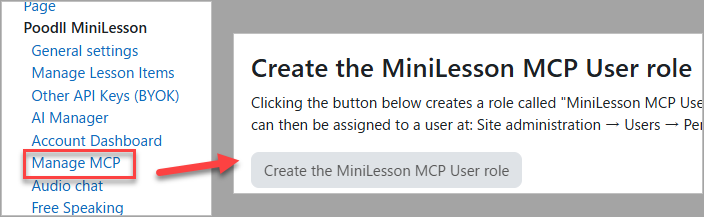
MiniLesson can create a "MiniLesson MCP Users" role for you. In the Minilesson admin settings, open page "Manage MCP" and there is an option there to create the role. It will not assign that role to users. You must do that.
Generating a web service token (Bearer authentication)
Bearer authentication uses a Moodle service token. Generate the token for the user at:
Site administration -> Server -> Web Services -> Manage tokens
N.B. Site administrators can not use web service tokens to authenticate in this way. It is good practice to prepare a user specifically for MCP use.
Setting up OAuth (OAuth authentication)
To use OAuth you will need to install the separate and free Poodll plugin: local_oauthmcp. It is here:
https://github.com/justinhunt/moodle-local_oauthmcp
Though that should be sufficient, sadly, at the time of writing Gemini Spark and Claude.ai require extra web server configuration. Check the web server configuration section in the documentation for local_oauthmcp.
Configuring for AI Agents
As mentioned each agent has its own configuration UI and things it supports and does not support. At the time of writing (Sept 2026) the UIs and other details are changing regularly. So these docs may be out of date.
- Instructions for Claude
- Instructions for Antigravity
- Instructions for ChatGPT
- Instructions for Gemini Spark
NB You may need to be on a paid tier of your Agent service for the ability to add custom MCP servers to be available. Current the landscape looks like this (Sept 2026:
| Platform | Free Tier Custom MCP? | Paid Tier Custom MCP? | Enterprise / Managed Workspaces |
| Claude | Yes (max 1 connector) | Yes (unlimited connectors) | Controlled by Organization Admins |
| ChatGPT | No | Yes (Developer Mode / Custom Connectors) | Admin-controlled via Workspace Plugins |
| Gemini (Spark) | No (standard extensions only) | Yes (Personal accounts with Spark) | Separate Cloud Enterprise MCP harness |
| Antigravity | Yes (unrestricted) | Yes (unrestricted) | Granular policy matching (mcp(...)) |
Putting it all together
A series of commands after that might look like:
- Can you connect to my Moodle course?
- Please fetch my courses.
- Create a new minilesson titled '[lesson name]'" in course [course name]
- List the ai generate templates
- Create a lesson to teach the English words: "cake, guilty, truth, crime, evidence" to Japanese learners.
OR
Create a reading passage and related activities for ESL learners about Polar Bears.
OR
Use [template name] to add items for ESL learners of CEFR level: A2 to [lesson name] using topic: [topic name] and vocabulary [some words].
Good Luck