
In MiniLesson item types FreeWriting, Typing Gapfill and Listening GapFill there is an option to enable a virtual keyboard. The virtual keyboard is designed for use when the learner's physical keyboard does not have the characters that they need to type, and they do not have the necessary IME (input method) or do not know how to use the IME for that language.
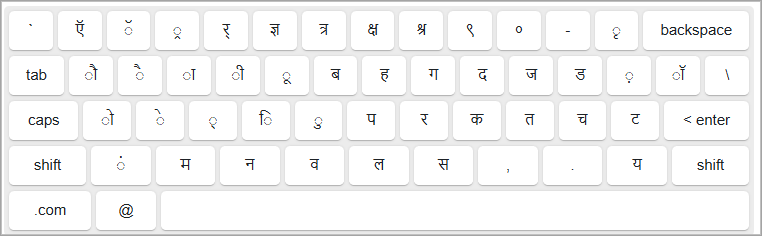
This is an example of the full virtual keyboard in Hindi.
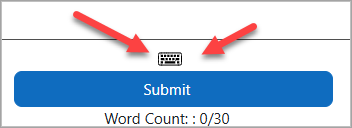
To use the virtual keyboard it should be enabled in the item settings for that item type. When enabled a small keyboard toggle icon will appear when the item is on screen.
The Keyboard Language
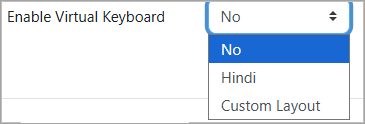
The language of the keyboard is set to the target language of the MiniLesson activity itself. So if the MiniLesson target language is Hindi, the keyboard options will look like this.
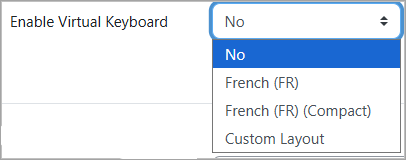
If the target language is French the virtual keyboard options will look like this.
Compact and Custom Layouts
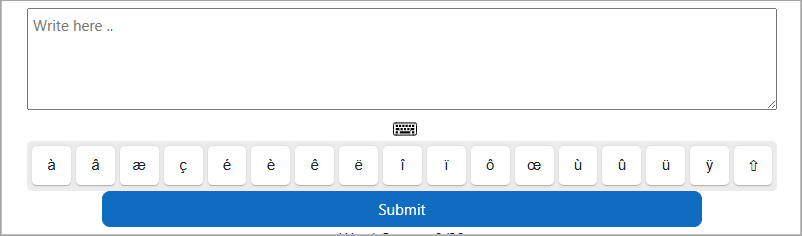
Some languages like Russian or Hindi require a completely different character set to the standard Latin alphabet keyboard. Other languages like Spanish and French only require a few extra characters in addition to those on the Latin alphabet keyboard. In those cases we have prepared a compact layout. In the case of French (compact) it looks like this.
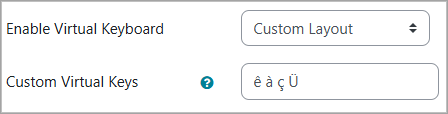
Where the activity only requires a subset of those letters or has some special requirement, a custom layout can be used. In that case, when the custom layout option is selected, enter a space separated list of characters into the Custom Virtual Keys field. Like this:
Credits
The Virtual Keyboard feature is powered by an open source keyboard called "Simple Keyboard." You can find out more about Simple Keyboard at: https://github.com/hodgef/simple-keyboard